- AI Creator Studio
- Posts
- AI Animate Image: I Tested 10 Best Tools With Identical Photo & Prompt (Reviews + Videos)
AI Animate Image: I Tested 10 Best Tools With Identical Photo & Prompt (Reviews + Videos)
Full side-by-side videos, honest reviews, pricing, and exactly how I use each tool.

Radu Lisita
December 02, 2025

Static images are losing the battle for attention.
Video drives 82% of all internet traffic and gets 12x more shares on social media than images + text combined, yet most creators avoid it because video production feels like too much work.
Enter AI image animation – the fastest way to turn any picture into a professional animated video in under 5 minutes, no skills required.
In this article I tested 10 leading AI image animation tools using the same high-resolution product photo and identical motion prompt across all platforms. The post breaks down what actually works, what's worth paying for, and which tool fits your specific needs.
What AI animation tools can actually do?
Make portraits talk and move - Perfect for memes, personalized messages, or that creepy deepfake your friend definitely didn't ask for.
Add cinematic camera moves - Dolly zooms, slow pans, rack focus – all the fancy stuff without owning a professional camera.
Simulate real physics - Wind through hair, water ripples, fabric movement that looks natural.
Generate synchronized audio - Some tools now add sound effects and music automatically.
Extend clips to 60+ seconds - Chain multiple generations together for longer sequences.
My testing methodology: identical photo & prompt, 10 different tools
Based on industry releases, feature updates, and real-world applications documented throughout the year, I selected the top 10 leading AI image animation tools currently available. To ensure a fair comparison, I tested each platform using identical parameters:
High-quality product photo of a stylish sneaker
Studio background for optimal animation quality
Image resolution 1024px and above
Identical motion prompt used across all tools

Product photo of a sneaker used as the reference image for testing all AI animation tools featured in this comparison. Image courtesy of lummi.ai
How to build a strong animation prompt?
Your prompt is the blueprint for how AI interprets and animates your image. A detailed, structured prompt produces dramatically better results than vague instructions like "make it move."
The three essential elements of an effective animation prompt:
Subject and Scene – Describe what's in the image with specific details
Action and Motion – Define camera movements, speed, and focal changes
Style and Lighting – Specify the aesthetic, mood, and visual treatment
Here's the prompt I generated in Gemini and tested across all tools:
Subject and Scene: A high-quality black leather chunky sneaker featuring distinctive leopard-print accents on the sole and laces. The product is securely displayed on a textured, raw beige stone plinth, set against a simple, neutral gray studio background.

Action and Motion: Execute a slow, smooth 3-5 second dolly-in (push-in) paired with a minimal, ultra-subtle arc camera movement. Simultaneously, apply a professional-grade rack focus that smoothly shifts the sharp focus from the tongue/laces to the main body and highly detailed platform sole of the shoe.

Style and Lighting: Cinematic, hyper-realistic look, aiming for 8K quality. Use dramatic, directional studio lighting that appears to slowly glide across the black leather surface, highlighting the material's texture and luxurious sheen. Maintain deep, rich shadows and strong contrast to convey a sense of high quality and expense. Professional product photography aesthetic, slow motion.
💡 Pro tip: I recommend Google Gemini for prompt generation. Simply upload your image, describe the motion you want, and let Gemini write a professional prompt for you. Most animation tools also include built-in prompt refinement features or AI co-pilots that can enhance your descriptions automatically.
AI Animate Image: 10 Best Tools Tested (Reviews + Videos)
Quick Comparison Table
Tool | Best For | Price | Key Feature | Video Length | Native Audio |
|---|---|---|---|---|---|
Multi-element video composition | $ | Multi-Elements (up to 4 reference images) | 5s, 10s (extendable) | ✓ | |
Character-consistent storytelling | $$$ | Cameo (train yourself or any character) | Up to 20s | ✓ | |
Cinematic storytelling with audio | $$$ | Synchronized native audio generation | 4s, 8s (extendable) | ✓ | |
Adobe ecosystem users | $$ | Direct integration with Creative Cloud | 5s | X | |
Physics-accurate motion & anime | $$ | Advanced physics simulation | 5s, 8s (extendable) | ✓ | |
Mobile-first content creators | $ | Mobile-optimized app with motion presets | 5s, 8s | ✓ | |
Professional post-production | $$ | Workflows automation & 4K upscaling | 5s, 10s | X | |
Cinematic quality & exploration | $$$ | Brainstorm feature + 4K HDR output | 5s, 10s (extendable) | X | |
Mobile-first content creators | $ | Mobile-optimized app with motion presets | 5s, 8s | ✓ | |
Ultra-fast generation & human motion | $ | Human portrait animation | 4s, 8s | ✓ | |
Precise motion control | $ | Access to 16+ AI video models | 5s | X |
Kling AI: Best for multi-element video composition
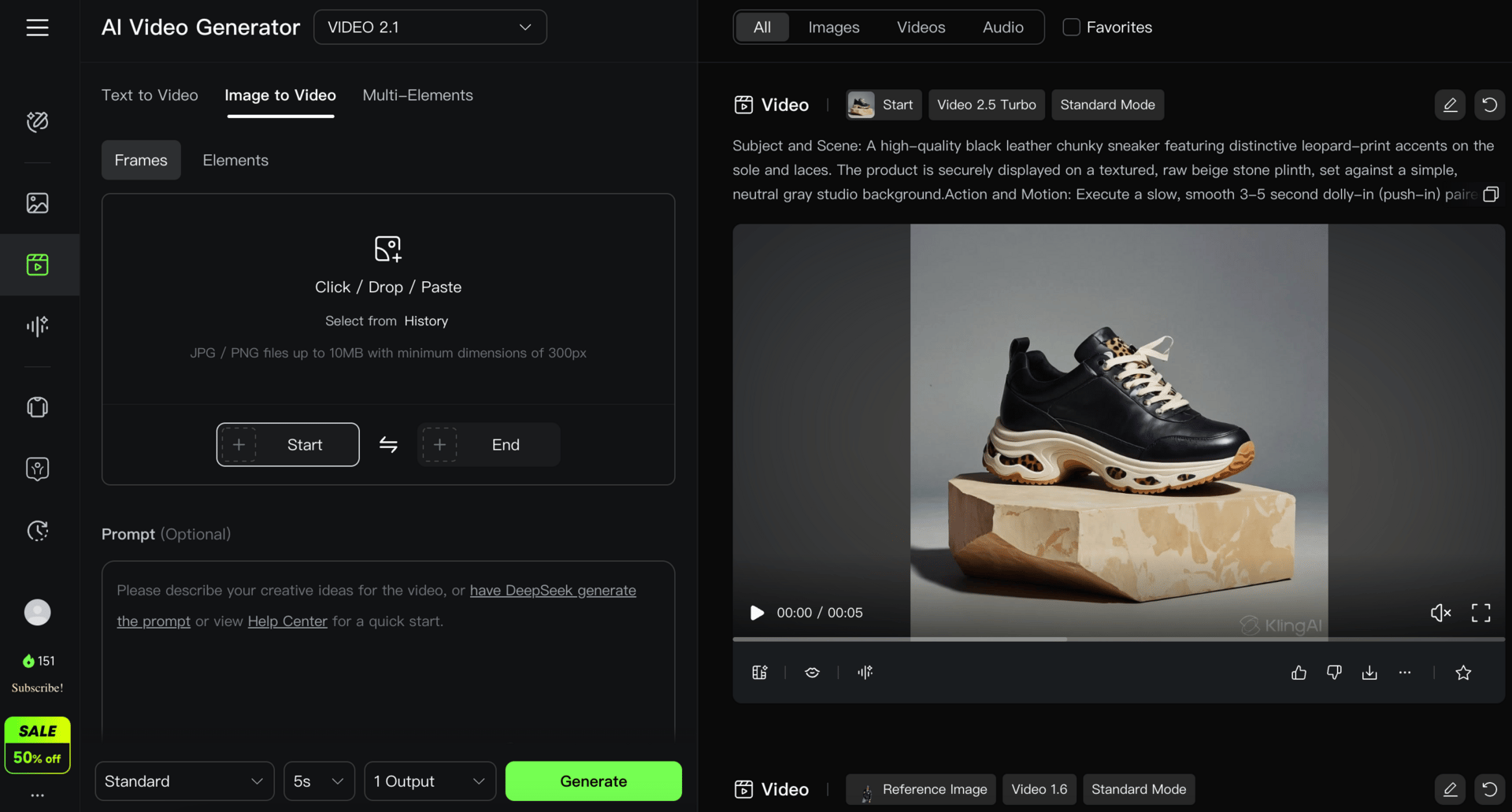
Kling AI is one of the pioneers in AI video generation, and it's evolved into one of the most complete platforms available. Beyond video generation, the platform now includes AI sound generation, AI avatar tools with realistic lip-sync, and an expanding toolkit that covers nearly every aspect of video production.
The platform offers 5 proprietary video models with a strong quality-to-cost ratio (Kling 2.5 is the current standout).
What makes it different: The Multi-Elements feature lets you upload up to four reference images – characters, objects, backgrounds, or entire scenes – and the AI combines them into a single, cohesive video while maintaining visual consistency throughout. This allows creation of entire series of videos that remain consistent with one another, featuring the same characters, settings, and objects across multiple generations.

Kling AI animate image result
AI model name: Kling 2.5
Platform: klingai.com
Kling AI key features
Video duration: 5-10 seconds, extendable up to 3 minutes via chaining
Aspect ratios: 16:9 (widescreen), 9:16 (vertical), 1:1 (square)
Resolutions: 720p and 1080p
Built-in audio generation
DeepSeek AI prompt improvement tool
Multi-Elements feature for swapping, adding, or removing objects in existing videos
Kling AI downsides
Rendering times are longer than most competitors. Free plan users typically wait around 15 minutes per video. Paid plans are faster, but you'll still occasionally hit 1-3 hour waits during peak times.
Kling AI pricing
Entry plan: $10/month | Kling 2.5 Turbo model: ~26 videos (5s, 720p, audio)
Professional plan: $37/month | Kling 2.5 Turbo model: ~120 videos (5s, 720p, audio)
Free plan: 125 credits one time (~5 videos) | Watermark on exports
Best for: Creators and social media teams needing to maintain character consistency across multiple scenes for storytelling and serial content. Marketing teams creating product variations and personalized ads. Budget-conscious creators seeking professional-quality output at the most affordable price point in the industry.
Sora: Best for character-consistent storytelling and premium production quality

Sora 2 model delivered what many considered impossible – truly consistent characters across multiple scenes, synchronized native audio, and motion quality that rivals professional footage. Currently, one of the best, it even got MrBeast worried about the future of creators.
For US/UK/Canada, Sora's primary platform is the mobile app or web interface at sora.com with deeper editing controls. Globally, the Sora 2 model can only be accessed through third-party AI video marketplaces such as Higgsfield, Leonardo.Ai, Hailuo AI, or Fal.ai; the latter bills your OpenAI API key per video, and that's how I animated the image for this test.
What makes it different: Sora 2's breakthrough feature is Cameo, which lets you train yourself (or any character) as a persistent AI model. Upload 5-10 photos, and the AI learns that person's appearance well enough to place them in entirely new scenes while maintaining facial features, expressions, and even lighting consistency.
Sora animate image result
AI model name: Sora 2
Platform: fal.ai
Sora key features
Video duration: up to 20 seconds (significantly longer than most competitors)
Multiple aspect ratios: 16:9 (widescreen), 9:16 (vertical), 1:1 (square)
Resolutions: 720p standard, up to 1080p on Pro mode
Cameo character training for consistency
Native synchronized audio
Builds narrative arcs from a single starting image
Physics-accurate motion with realistic weight and environmental interaction
Built-in social sharing via the Sora app
Sora downsides
The official app only works in the US, UK Canada, and select regions. Same limitations apply to the Sora 2 model on sora.com's web interface.
You can't adjust motion intensity or camera movements through visual controls; you’ll rely entirely on prompts.
One of the most expensive models on this list
Sora pricing
Official ChatGPT plans (US/CA/UK only):
ChatGPT Plus: $20/month | ~50 videos (10s, 1080p, no watermarks, priority queue)
Sora 2 model through third-party AI video platforms (global access):
Leonardo.Ai: $30/month | Sora 2: ~31 videos (8s, 720p)
Higgsfield AI: $29/month | Sora 2: ~30 videos (8s, 720p)
Fal.ai: Pay-per-generation | $0.80 per video (8s, 720p) – roughly 37 videos for $30
Best for: Filmmakers building episodic series with recurring characters, brands creating personalized campaigns with real people, marketing teams where character consistency across scenes is non-negotiable, creators chasing viral social media moments.
Flow (Veo 3.1): Best for cinematic storytelling with audio

Let me clarify the confusion upfront: Veo 3.1 is Google's latest AI video model – the actual brain doing the work. Flow is the interface where you access it.
Now, about Veo 3.1 itself. Launched in October 2025, it's Google's most advanced video generation model to date. It delivers Hollywood-grade realism, fluid motion, and narrative depth for professional ad campaigns, short films, and storyboards, outpacing rivals in audio-visual sync and consistency.
Flow (the interface) gives you several powerful features to work with. Ingredients to Video lets you combine up to 3 reference images to lock in characters and visual style. Frames to Video generates smooth transitions between your defined start and end frames. The Extend feature builds videos beyond 60 seconds by seamlessly continuing from any clip's final frame, so you can develop full narrative arcs from a single starting point.

What makes it different: Veo 3.1 generates synchronized audio directly alongside your video – dialogue, ambient sounds, effects, all from your prompt. The audio sync is genuinely impressive, and I expect it'll only get better from here.
Flow (Veo 3.1) animate image result
AI model name: Veo 3.1
Platform: labs.google/flow
Flow (Veo 3.1) key features
Standard duration is 8 seconds, extendable with scene extension
Aspect ratios: 16:9 (horizontal) and 9:16 (vertical)
Resolutions: 720p and 1080p
Native audio generation with dialogue, sound effects, and ambient noise
Up to 3 reference images for style and character control
Insert/Remove tools for precise scene editing
Flow (Veo 3.1) downsides
Limited to two aspect ratios (no square 1:1 or custom formats)
Subscription-only access through Google AI plans (no standalone Flow pricing or free tier beyond trials)
High credit costs for Quality mode
Flow (Veo 3.1) pricing:
Professional plan: $19.99/month | Veo 3.1 Fast: ~50 videos (8s, 720p, audio) OR Veo 3.1 Quality: ~10 videos (8s, 720p, audio)
Free trial: Available (limited generations with Veo 3.1) | Watermarked exports
Best for: Filmmakers building cinematic sequences with narrative continuity, marketers creating story-driven content with audio, creators who need precise control over transitions and character consistency, professionals requiring longer-form content through scene extension, teams already in the Google ecosystem with Gemini integration.
Firefly Video: Best for Adobe ecosystem users
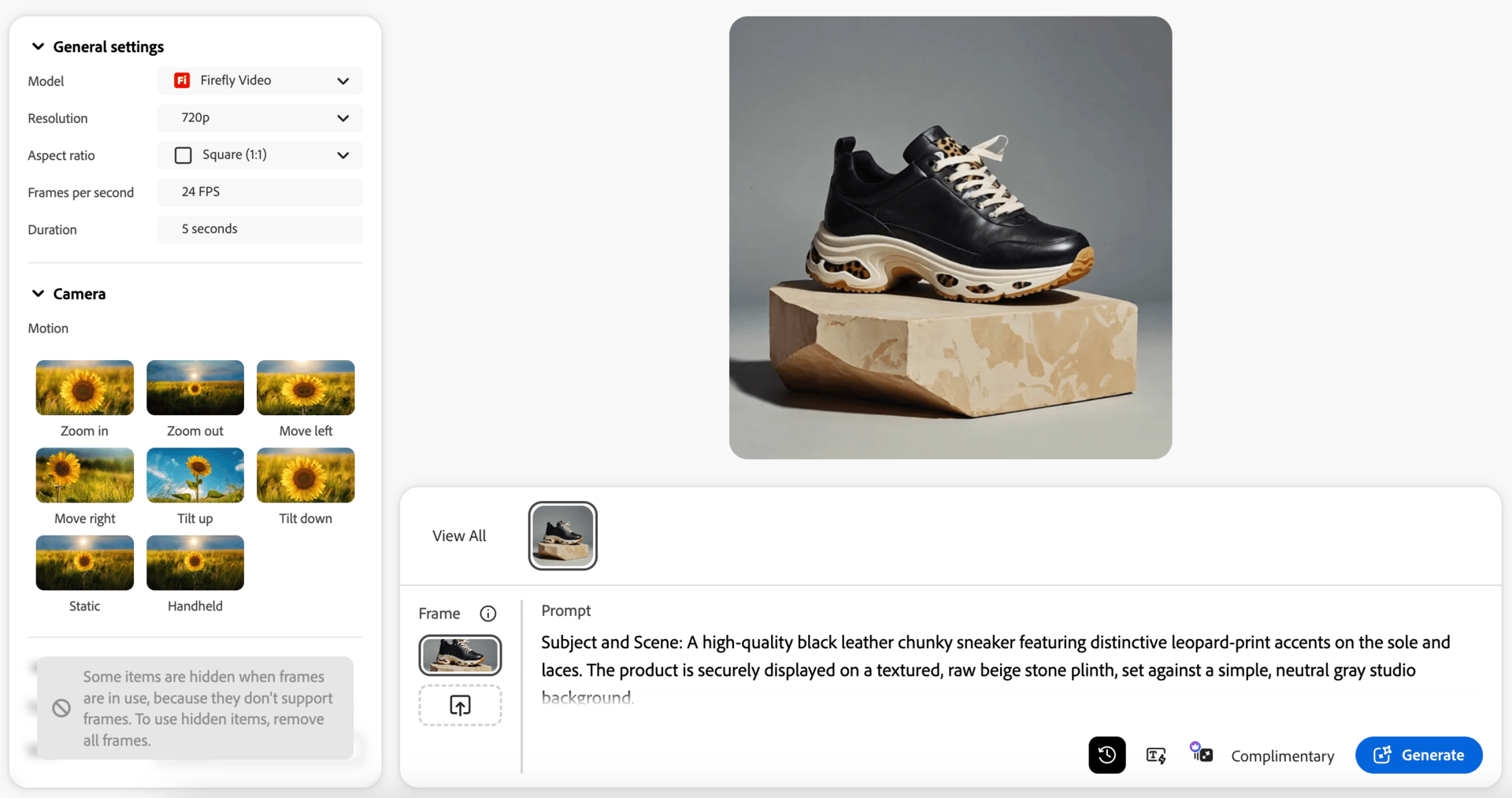
Firefly Video is Adobe's answer to AI video generation, and it's the first one built specifically for commercially safe outputs (because it’s trained exclusively on licensed Adobe Stock and public domain content). This means you might have less legal headaches for using it in client projects – a huge deal for agencies and freelancers who can't afford IP risks.
What makes it different: Firefly Video lives inside Adobe Creative Cloud, which means it's natively connected to Photoshop, Premiere Pro, and Illustrator. This allows generated videos to flow effortlessly into professional workflows. For example, you can generate an animated clip and drop it straight into Premiere Pro for editing or layer it with live footage. For Adobe ecosystem users, that must feel like a cheat code.
Firefly Video animate image result
AI model name: Firefly Video
Platform: firefly.adobe.com
Firefly Video key features
Single duration option of 5 seconds
3 aspect ratios: 16:9 (horizontal), 9:16 (vertical), and 1:1 (square)
Resolutions: 720p and 1080p
8 motion camera presets available (e.g., pan, zoom, dolly)
Prompt enhancer for better generation quality
Export directly to Adobe Express or Premiere Pro
Firefly Video downsides
Limited to 5-second clips
Frequent generation failures or inconsistencies, such as distorted faces, bodies, or unintended changes to subjects
Firefly Video pricing
Entry plan: $11.99/month | Firefly Video model: ~20 videos (5s, 1080p)
Professional plan: $23.99/month | Firefly Video model: ~40 videos (5s, 1080p)
Free plan: Available with limited generations
Best for: Creative professionals already in the Adobe ecosystem, agencies producing commercially safe content at scale, marketers needing seamless integration with Premiere Pro and Photoshop, teams requiring IP-friendly video generation, designers who want to move from ideation in Firefly to production in Creative Cloud apps without switching platforms.
Hailuo AI: Best for physics-accurate motion and anime-style videos

Hailuo AI is the tool I keep coming back to for anything involving complex motion or anime aesthetics. The physics simulation is noticeably better than competitors – fabric moves naturally, water flows realistically, and character movements feel weighted.
Important to know: some features available on Hailuo AI, such as native audio generation, aren't accessible through the standard video interface – only through Agent mode.
What makes it different: Hailuo AI stands apart with its Video Agent mode, which transforms video creation from a technical workflow into a conversational process. You can ask the agent to plan the script for you, then generate storyboards, and once they're finalized, it'll proceed to the animation generator.
The Agent mode is still in development, and for complex workflows, the conversational mode might not be enough. But for quick social content or product demos, it can handle the production pipeline.

Hailuo AI animate image result
AI model name: Hailuo 2.3
Platform: hailuoai.video
Hailuo AI key features
Video duration: 5-8 seconds per clip, extendable through chaining
Aspect ratios: 16:9 (widescreen), 9:16 (vertical), 1:1 (square)
Resolutions: 768p (Standard/Fast), 1080p (Pro)
Built-in library of prompts and templates for quick starts
Prompt refinement options (can turn on or off) to optimize your descriptions
Advanced physics simulation with 20+ motion presets (e.g., fluid dynamics, facial expressions)
Hailuo AI downsides
Lack of timeline control or frame editing for professional workflows
No built-in audio generation (requires external tools)
Agent mode still in development
Hailuo AI pricing
Entry plan: $14.99/month | Hailuo 2.3 model: ~20 videos (6s, 768p) OR Hailuo 2.3 Fast model: ~66 videos (6s, 768p)
Professional plan: $54.99/month | Hailuo 2.3 model: ~180 videos (6s, 768p) OR Hailuo 2.3 Fast model: ~300 videos (6s, 768p)
Free plan: 200 initial credits (~8 videos) | Watermarked exports
Best for: Creators who want to streamline the entire workflow from concept to completion, filmmakers prototyping cinematic scenes with realistic physics and anime styles, marketers animating product visuals or ads with emotional depth. Hailuo AI Particularly powerful for anime creators, dance choreography videos, and projects requiring complex physics-based motion.
PixVerse: Best for mobile-first content creators
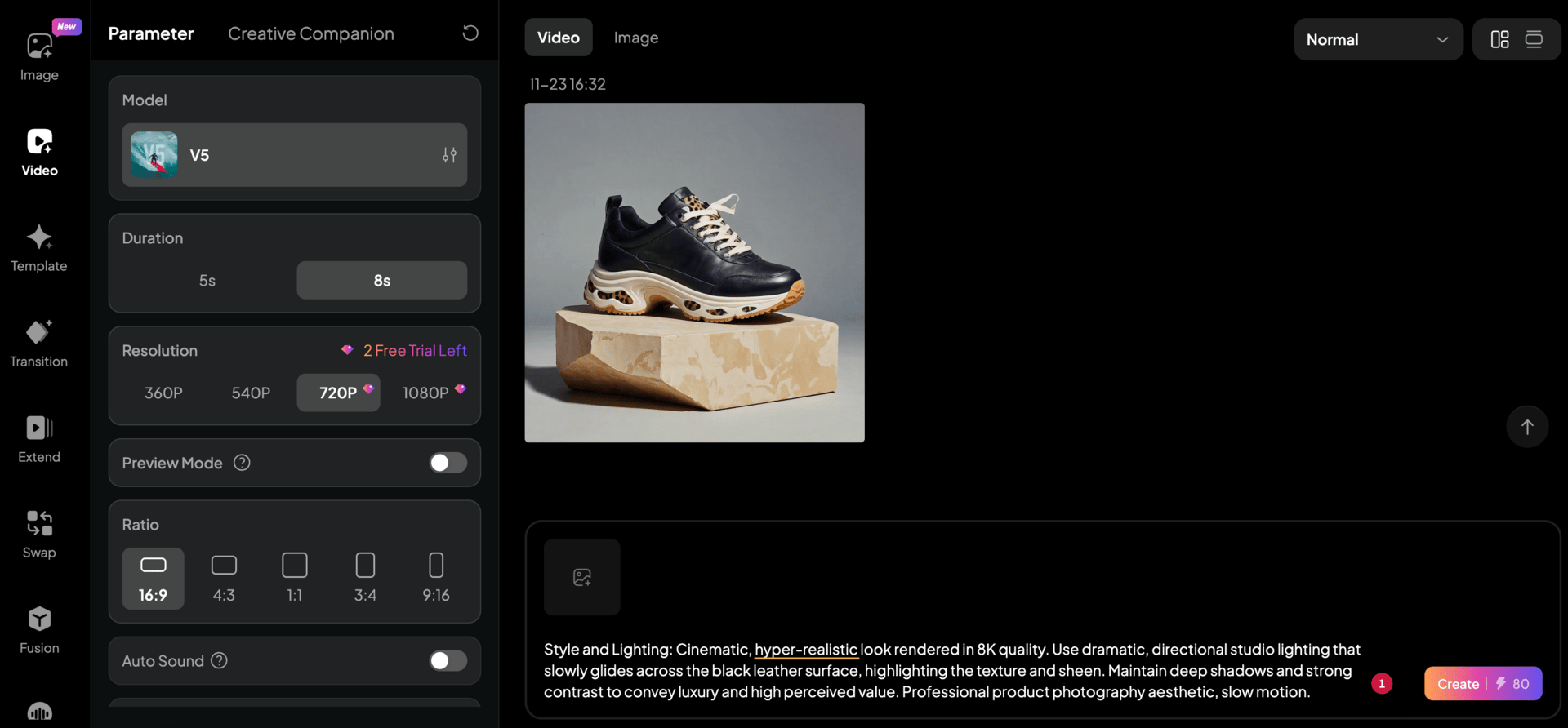
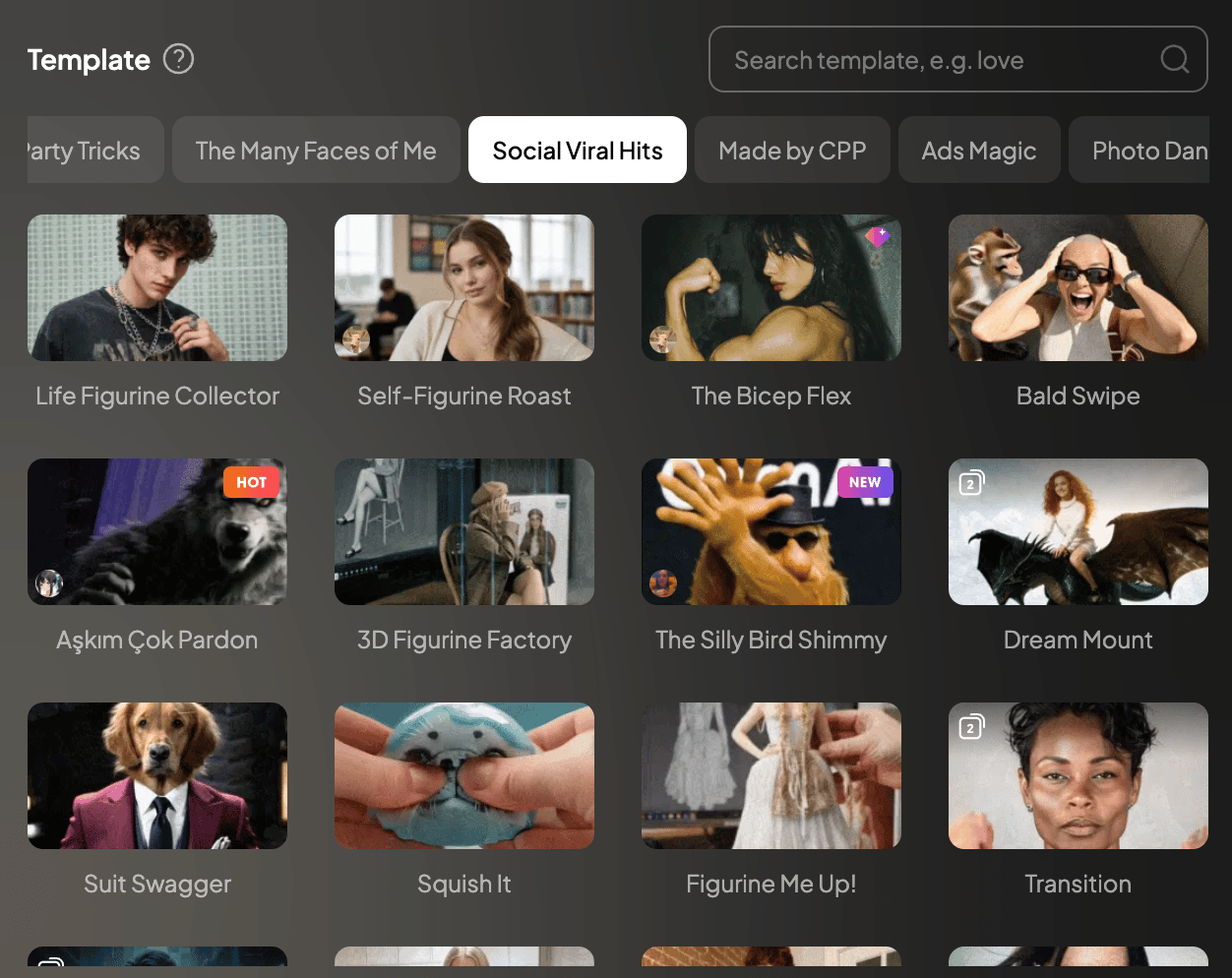
PixVerse is the TikTok of AI video generators – fast, mobile-optimized, and built for viral content. If you're creating daily social media content and need speed over perfection, this is your tool. The mobile app is surprisingly good, and rendering times are some of the fastest I've tested (30-60 seconds).
What makes it different: PixVerse is optimized for mobile creation. You can literally generate videos on your phone while waiting in line for coffee. The interface is dead simple, and the preset motion options mean you don't need to write complex prompts.
PixVerse animate image result
AI model name: PixVerse V5
Platform: pixverse.ai
PixVerse key features
Multiple aspect ratios: 16:9 (widescreen), 9:16 (vertical), 1:1 (square), 4:3, and 3:4
Resolutions: 360p, 540p, 720p, 1080p
Video durations: 5-8 seconds per clip (extendable via chaining)
Prompt enhancer and style transfer for refining inputs
Camera movement controls with 20 preset options
PixVerse downsides
Lack of timeline control or frame editing for professional workflows
Watermarks and resolution limits on free plan
PixVerse pricing
Entry plan: $10/month | PixVerse V5 model: ~24 videos (5s, 720p, audio) OR PixVerse V5 Fast model: ~48 videos (5s, 720p, audio)
Professional plan: $30/month | PixVerse V5 model: ~120 videos (5s, 720p, audio) OR PixVerse V5 Fast model: ~240 videos (5s, 720p, audio)
Free plan: 90 initial credits (~3 videos) + daily login credits | Watermarked exports
Best for: Social media creators producing TikTok, Instagram Reels, and YouTube Shorts, marketers testing viral effects and trending templates, content creators needing fast turnaround for daily posts, meme creators and influencers focused on short-form viral content.
Runway AI: Best for professional post-production workflows
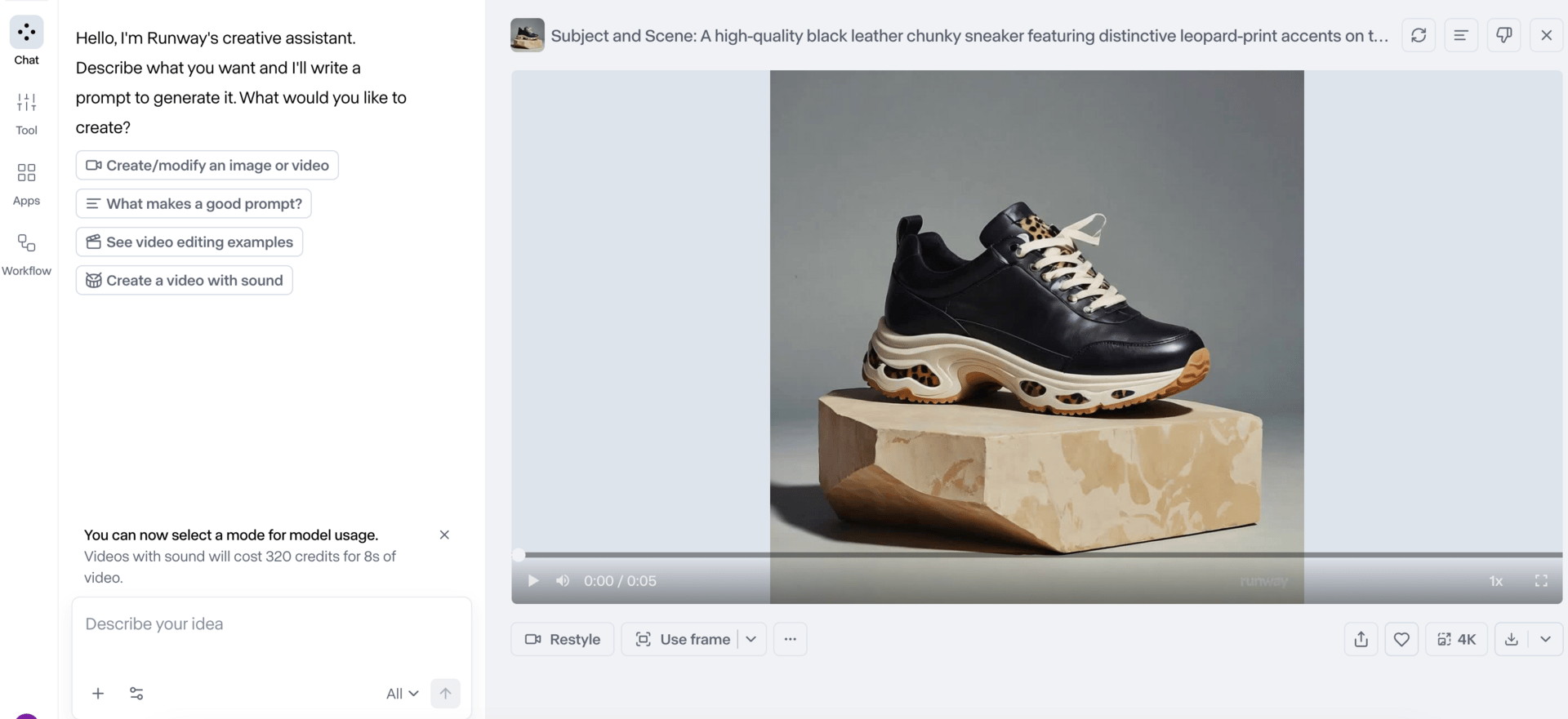
Runway AI (also known as Runway ML) is a complete post-production studio built for professionals who need broadcast-quality results. The platform gives you access to both Runway's proprietary Gen-4 models and Google's Veo 3 series, but the real power is in how everything integrates. Built-in video editor, frame interpolation, 4K upscaling it's all there, eliminating the need to bounce between tools.
What makes it different: Workflows is the standout feature here. It's a visual editor that lets you chain together multiple AI models, editing tools, and processing steps into repeatable production pipelines. Think of it as automation for your entire video creation process. Generate → Upscale → Edit → Export, all automated.
It's just a matter of time until every other AI video tool integrates this, but for now, Runway has a significant lead.

Runway AI animate image result
AI model name: Runway Gen-4
Platform: runwayml.com
Runway AI key features
Video duration: 5-10 seconds
6+ aspect ratios, direct GIF/MP4 export
Built-in 4K upscaling option
Integrated video editing suite with frame interpolation for ultra-smooth motion
Professional-grade output quality suitable for broadcast and commercial use
Workflows visual editor for building automated production pipelines
Collaborative workspace features for teams
Runway AI downsides
No native audio/music generation yet (relies on external sources)
Workflows feature requires learning curve for complex setups
Runway AI pricing
Entry plan: $15/month | Gen-4 Turbo model: ~25 videos (5s, 720p)
Professional plan: $35/month | Gen-4 Turbo model: ~90 videos (5s, 720p)
Free plan: 125 credits one time (~5 videos) | Watermark on exports
Best for: Professional video producers, advertising agencies, filmmakers, high-end commercial work, teams needing collaboration tools and automated workflows, creators requiring broadcast-quality output with repeatable production processes.
Dream Machine: Best for cinematic quality and creative exploration

Luma Labs' Dream Machine is built for creators who won't compromise on visual quality. The output consistently looks more cinematic than most competitors. The Ray3 model delivers fluid motion and strong temporal coherence across frames.
On top of that, the 4K extension feature maintains quality without the usual degradation you see in other tools, which makes it viable for projects that need professional-grade deliverables.
What makes it different: The Brainstorm feature is an AI creative co-pilot that generates dozens of prompt variations, mood boards, and visual concepts. It's perfect for when you're staring at a blank screen with zero ideas.
Dream Machine animate image result
AI model name: Ray3
Platform URL: dream-machine.lumalabs.ai
Dream Machine key features
Video duration: 5-10 seconds
6 aspect ratios for videos
Resolutions: 720p and 1080p
4K upscaling without re-generation
Brainstorm feature generates creative prompt variations for faster ideation
Board-based project organization for managing multiple video workflows
Keyframe control for dynamic transitions and compositional changes
Dream Machine downsides
More expensive per video compared to competitors
Entry paid plan limited to non-commercial use with watermarks
No native audio generation (requires external tools)
Dream Machine pricing
Entry plan: $9.99/month | Ray3 model: ~10 videos (5s, 720p, non-commercial use only, watermark on exports)
Professional plan: $29.99/month | Ray3 model: ~31 videos (5s, 720p)
Free plan: 30 credits at sign up (~2 videos) | Watermark on exports | Non-commercial use only
Best for: Filmmakers and creative professionals prioritizing cinematic quality and visual fidelity. Content creators who benefit from AI-assisted ideation through the Brainstorm feature. Teams needing studio-grade output with 16-bit HDR and 4K extension capabilities for high-end commercial projects.
Vidu AI: Best for ultra-fast generation and realistic human motion
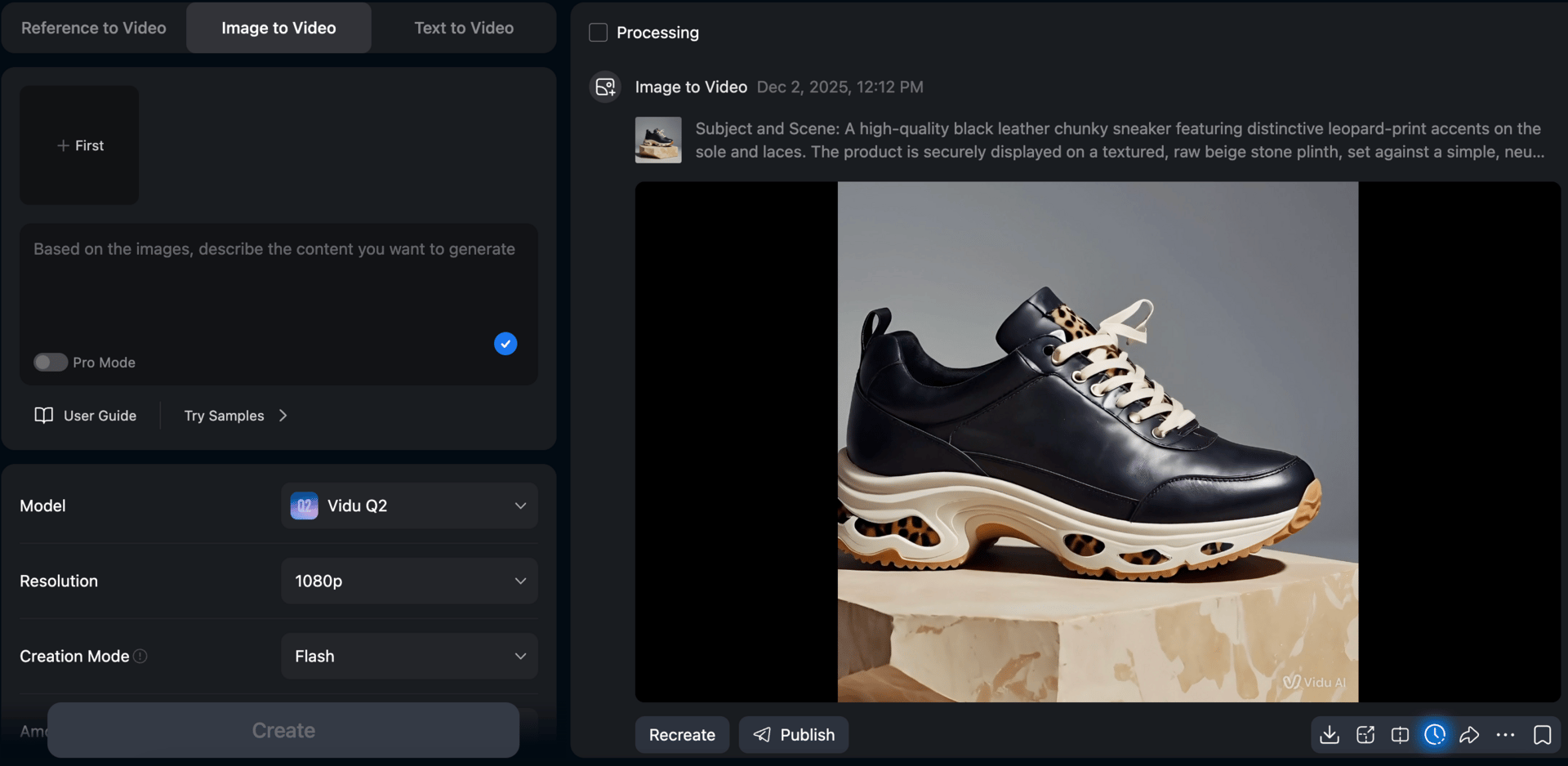
Vidu AI stands out as one of the fastest AI video generators on the market, consistently delivering results in under 60 seconds. My first impression confirmed this immediately; my initial video generated in literally 10 seconds.
Beyond raw speed, Vidu offers a complete ecosystem for creators, covering everything from image generation to video creation. The platform includes Multi-Reference Consistency for maintaining visual coherence across multiple clips, and notably, AI sound effects with a timeline-based composer.
What makes it different: The latest Vidu 2.0 model represents a significant leap in quality, particularly for generating realistic human movements and facial expressions with minimal artifacts. While I tested it with a product photo for this comparison, Vidu truly excels with human subjects (subtle facial movements, natural body language, and smooth transitions between poses). If you need a portrait to talk, present, or react like a real human, Vidu consistently wins head-to-head tests against competitors.
Vidu AI animate image result
AI model name: Vidu 2.0
Platform: vidu.com
Vidu AI key features
Video duration: 4-8 seconds
Aspect ratios: 16:9 (widescreen), 9:16 (vertical), 1:1 (square)
Resolutions: up to 1080p
Multi-lens camera simulation (wide-angle, standard, telephoto, macro)
Advanced facial animation with micro-expressions
Consistent character feature
Reference Image + Audio mode: upload any voice clip for perfect lip-sync
Vidu AI downsides
Vidu's speed varies dramatically depending on which model you choose. While Vidu 2.0 generates videos in seconds, the higher-quality Vidu Q2 model is painfully slow, taking 3-6 hours on the free plan and 15-45 minutes even with a paid Pro subscription. This is significantly slower than most competitors' premium tiers.
Still struggles with complex full-body motion (best results are head-and-shoulders)
Vidu AI pricing
Entry plan: $10/month | Vidu 2.0 model: ~200 videos (4s, 512p) OR Vidu Q2 model: ~80 videos (5s, 1080p)
Professional plan: $35/month | Vidu 2.0 model: ~1000 videos (4s, 512p) OR Vidu Q2 model: ~400 videos (5s, 1080p)
Free plan: 20 credits one time (~5 videos) | Watermarked exports + additional credits available through platform challenges
Best for: Creators making personalized video messages, portrait animators focusing on facial expressions and emotion, educational content with AI presenters, multilingual social media avatars, content creators who prioritize speed, and anyone wanting the most realistic “photo that talks” effect available today.
Leonardo.Ai: Best for precise motion control

Leonardo.Ai functions like an AI creation marketplace, offering access to more than 16 different AI video models. Started as a game asset generator it has evolved into a powerhouse for both static images and video animation. This marketplace approach makes it incredibly convenient for creators who want to test different models without managing multiple subscriptions or switching between platforms.
What makes it different: When using Leonardo Motion (their proprietary video model), the creation interface offers one of the most extensive customization options on the market. You can fine-tune color themes, lighting presets, camera motion templates, and even the overall "vibe" of your video. This means you rely less on crafting the perfect prompt and more on adjusting visual parameters directly.

Leonardo.Ai animate image result
AI model name: Motion 2.0 Fast
Platform: leonardo.ai
Leonardo.Ai key features
Video duration: 5 seconds per clip
Multiple aspect ratios: 16:9 (widescreen), 9:16 (vertical), 2:3, 4:5
Resolutions up to 1080p
Real-time Canvas editor for pre-animation refinement and live prompt tweaking
Motion Control/Elements with optimized presets
Transparent PNG support for animation (perfect for stickers/overlays)
Access to 16+ AI video models from various providers in one platform
Leonardo.Ai downsides
While Leonardo Motion offers impressive control, the output quality still lags behind. The animations can appear less refined, with occasional motion artifacts and less realistic physics simulation
The extensive number of options and models can feel overwhelming for beginners
Leonardo.Ai pricing
Entry plan: $12/month | Motion 2.0 Fast model: ~121 videos (5s, 720p) OR Motion 2.0 model ~42 videos (5s, 720p)
Professional plan: $30/month | Motion 2.0 Fast model: ~357 videos (5s, 720p) OR Motion 2.0 model ~125 videos (5s, 720p)
Free plan: Free plan: Daily token quota | No watermarks on exports
Best for: Game devs needing consistent character animations, artists iterating concepts in Realtime Canvas, creators who want to test various AI models without platform-hopping, designers requiring transparent PNG animation for logos and overlays, marketers prototyping multiple visual concepts with granular motion control.
How to create AI animated images?
The process is straightforward and typically takes 1-5 minutes, depending on the complexity and the tool you're using. Follow these steps to animate any image with AI:
Choose an AI animation generator (from the list above)
Prepare your image - ensure it's high quality (minimum 1024x1024 pixels)
Upload to the tool - drag and drop or select from your files
Write a motion prompt - describe how you want the image to move
Configure settings - select aspect ratio, duration, motion intensity
Generate - click create and wait 2-3 minutes
Download - save your animated video

The user interface of Hailuo AI, one of the leading AI animate image tools. Users upload a static image, describe the desired motion in a prompt, and adjust settings before generating the video.
How to AI animate image: 7 pro tips for best results
Success with AI image animation comes down to preparation and technique. Follow these proven strategies to produce better results.
1. Use High-Resolution Source Images
Minimum 1024x1024 pixels for best results. Low-resolution images produce blurry, pixelated animations. If your source is smaller, use AI upscaling tools first (many free options available) before animating.
2. Remove Backgrounds for Cleaner Animation
Clean, simple backgrounds give AI models fewer elements to track, resulting in smoother motion. Use free tools like remove.bg or Photoshop's background removal before uploading.
3. Write Detailed Motion Prompts
Generic prompts like "make it move" produce unpredictable results. Instead, specify:
Camera movement (dolly in, pan left, zoom out)
Subject motion (turn head, blink, smile)
Speed (slow, smooth, dynamic)
Lighting changes (if applicable)
Effective prompt structure:
[Camera movement type] capturing [subject] [specific action]. [Environmental details]. [Lighting description]. [Style reference].Example:
Slow dolly-in camera movement while the subject turns their head slightly to the left and smiles. Soft natural lighting remains consistent.Professional results require iteration. Generate 3-4 variations with slightly different prompts to find the best result.
4. Test Multiple Tools for Different Content Types
Each tool has strengths:
Portraits: Hailuo AI, Flow (Veo 3.1)
Products: Kling AI, Runway AI
Landscapes: Dream Machine (Ray3)
Quick social content: PixVerse
Use free trials to find which platform best suits your specific content needs before subscribing.
5. Chain Clips Together for Longer Sequences
Most tools generate 5-10 second clips. To create longer videos, use a chaining technique: First, generate your initial clip. Then, take the final frame from that clip and use it as the starting image for your next generation, keeping your motion prompt consistent. Repeat this process to build a sequence of connected clips that flow naturally from one to the next.
Once you have all your clips, combine them in any basic video editor like CapCut, iMovie, or Firefly video editor to create a seamless extended video. This method lets you build 30-second, 1-minute, or even longer animations from tools that only generate short clips.
6. Add Sound in Post-Production
While some AI animation tools now generate soundtracks directly from prompts, you'll often want more control over your audio or need to add sound to tools that don't support native audio generation.
Where to source audio:
Background music:
Epidemic Sound (paid, copyright-safe)
Artlist (paid, high quality)
Pixabay (free)
Platform native libraries (TikTok, Instagram)
Sound effects:
ElevenLabs Sound Effects (AI-generated)
Freesound (free library)
YouTube Audio Library (free)
Epidemic Sound (full production library)
Voiceover:
ElevenLabs (AI voices)
Your own voice (most authentic)
7. Match Aspect Ratio to Your Distribution Platform
Generate specifically for your platform to avoid awkward cropping.
TikTok/Instagram Reels/YouTube Shorts: 9:16 (vertical)
YouTube thumbnail: 16:9 (horizontal)
Instagram Feed: 1:1 (square) or 4:5 (portrait)
Landing Page hero: custom size
AI generation involves iteration. Generate 3-4 variations with slightly different prompts to find the best result.
AI Animate Image FAQs
Which ai can animate images for free?
Yes, several tools offer free plans with limitations. PixVerse provides 90 initial credits plus daily login bonuses, Hailuo AI offers 200 credits at signup, and Runway gives 125 one-time credits. These are enough to test 5-10 animations before deciding on a paid plan. However, free tiers typically include watermarks and lower resolution limits.
What image formats work best?
PNG and JPEG files work universally across all platforms. Use PNG for images with transparency that you want to preserve. Most tools accept images up to 1024x1024 pixels or higher. Avoid heavily compressed JPEGs as they produce lower-quality animations.
How long does it take to AI animate image?
Most tools provide results within 2-3 minutes, making the process significantly faster than traditional video creation.
Do I need technical skills to animate images with AI?
No. These tools are designed specifically for non-technical users. If you can upload a photo and write a sentence describing motion, you can create animated videos online. The interfaces are intuitive, often simpler than basic photo editing software. Most platforms offer preset motion options if you prefer not to write custom prompts.
Can I animate photos of people?
Yes, and most tools excel at portrait animation. You can make faces blink, smile, turn, or express emotions. Hailuo AI and Veo 3.1 are particularly strong for realistic human motion and facial expressions. However, be mindful of ethical considerations.
Which tool is best for beginners?
PixVerse is the most beginner-friendly option offering a simple interface that requires minimal adjustments. It delivers fast generation times of just 30-60 seconds and includes a generous free plan with daily credits to keep you creating without immediate payment. The platform also features pre-built motion presets, so you don't need to write complex prompts from scratch.
Final verdict – which AI image animator should you use?
Budget-conscious with high quality needs? → Kling AI
Character-driven narratives → Sora 2
Want cinematic storytelling with audio → Flow (Veo 3.1)
Already in Adobe ecosystem → Firefly Video
Anime or physics-heavy scenes → Hailuo AI
Mobile & viral clips on a budget → PixVerse
Need the absolute best quality + commercial license → Runway AI
Creative exploration? → Dream Machine
Lightning-fast generation for human subjects? → Vidu
Want precise control across multiple AI models? → Leonardo.Ai
Start animating your images with AI today – pick one of the tools above, upload your photo, and watch static content turn into scroll-stopping video in minutes. 🚀
— Radu
